Today I took all of the elements I had created and remade my initial concept in the front view.
I am happy with the outcome of my drawing and feel I have been able to successfully translate the initial ideas I had into a fully realised world which represents the traditional Japanese side.
I now want to take the ideas I have formed from constructing the traditional city and use them to make the cyberpunk world which is invading Japan.
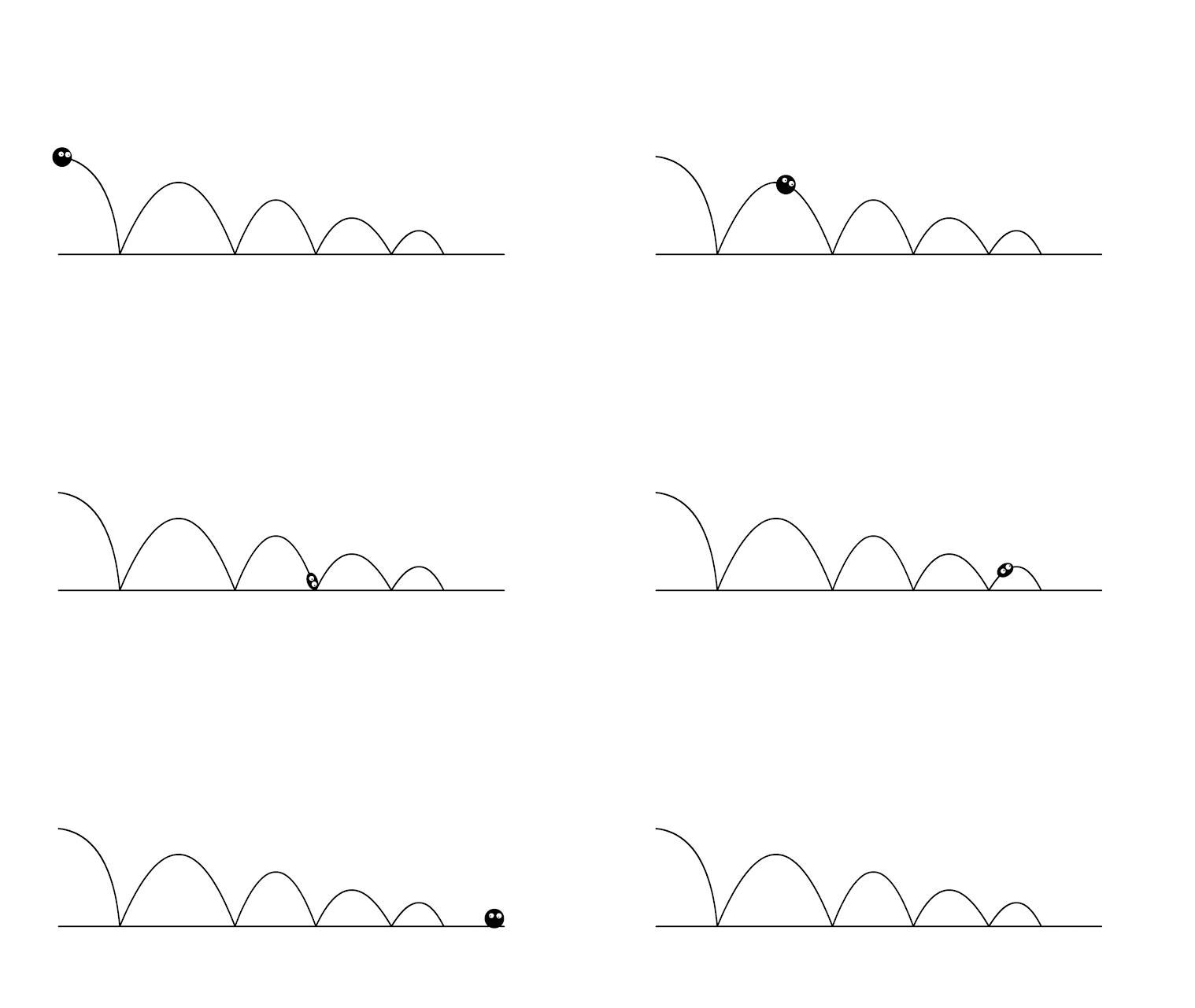
For this lesson we were tasked with adding parts to our squash and stretch ball in order to begin understanding secondary animation. This is animation which is happening alongside the main animation. I initially did this by simply adding eyes to my squash and stretch ball.
Reflective Statement For Major Project Overall I am really pleased with the outcome of the animation. This is mainly due to me feeling that I was able to include everything I set out to do, all the way from the beginning of Premise. It has been a very long process, with different routes taken in order to bring me to the final product. At times I felt I had set myself a far too large goal to achieve and was unsure that I was able to complete the project within the timeframe. However I kept going and I am proud to say I completed everything to the best of my ability. I believe the key to succeeding in the completion of this project was good time management. Had I not completed certain section in time for the next then I would have run out of time nearer the end of the project. At the end of the Minor project, I had completed the redesign of my animation story and characters and applied my ideas to create a Pre-viz which depicted the events of the second iteration of the anima...
Main Hotkeys Alt + Middle Mouse Click = Pan Camera Alt + Right Mouse Click = Zoom Camera Alt + Left Mouse = Rotate Camera Alt + Shift + Left Mouse = Rotate In Increments Tab = Swap Interface (Closer Up View Of Object) F1 = Split View (2D + 3D View) F2 = 3D View F3 = 2D View F4 = Swap 3D + 2D Side Shift + Right Mouse Click = Change The Direction Of Light B = Bake (Allows You To See Baked Information) M = Material C = Cycle Through The Channels X = Changes The Colour Spectrum To The Opposite (Black To White). Useful When Using Masks - BLACK REVEALS, WHITE COVERES S + Right Mouse Click = Zoom Stencil S + Middle Mouse = Pan Stencil S + Left Mouse Click = Rotate Stencil Anchor point always has to be below the layer that will use it. They are used in order to show added information. Example was a skull and crossbones heightmap. It did not have the red edge. In order for this to show up, created an anchor on the heightmap layer. Then went back to man layer and selected micro ...
Comments
Post a Comment